

Download Smart Screengrabber Pro
AI-powered video frame extraction with face detection and scene analysis.
Mac Version
Size: ~2.5 GB | macOS 10.15 or later required
📥 Download for MacInstallation Instructions
- Click the download button
- Wait for the ZIP file to download (~2.5 GB)
- Double-click the ZIP to extract it
- Open the extracted folder
- Double-click "SmartScreengrabberPro" to run
- If macOS says "can't be opened", right-click → Open → Open again
Features
- 🎯 AI face & eye detection
- 🔍 Scene & duplicate detection
- 🤖 CLIP AI semantic search
- ⚡ 4K/8K optimized
- 📊 Batch processing
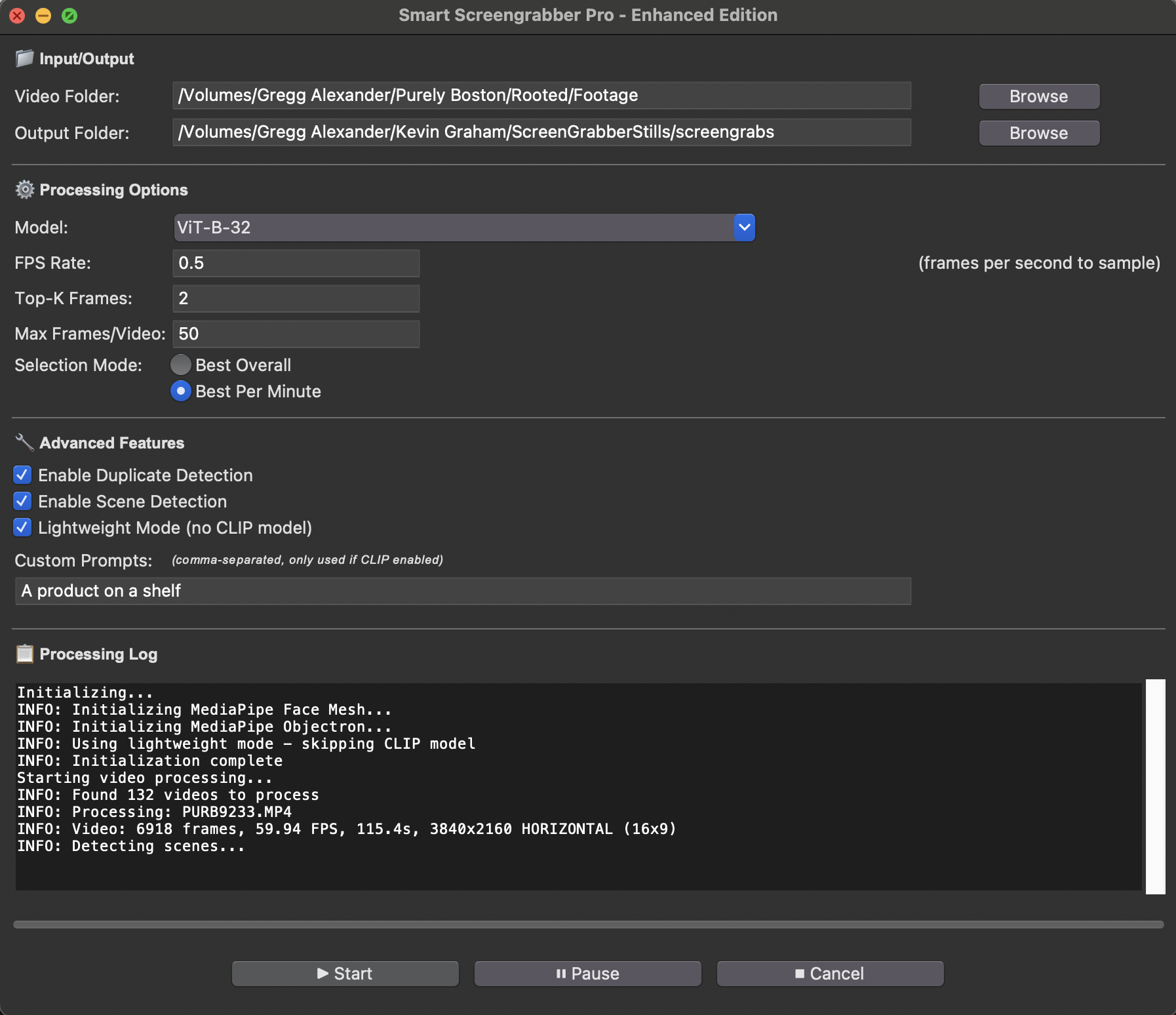
Settings Explained (Simple Guide)
Processing Options
Model
The AI model used to find faces. "ViT-B-32" is the default and works great - just leave it as is.
FPS Rate
How many frames per second to check. The default (0.5) checks 1 frame every 2 seconds - perfect for most videos.
- 0.5 = Checks every 2 seconds (recommended for most videos)
- 1 = Checks every second (for faster action)
- 2+ = Checks multiple times per second (only for very fast videos)
Top-K Frames
How many of the BEST frames to save.
- 2-10 frames: Quick highlights
- 20-50 frames: Good for most videos (default is 2)
- 100+ frames: Long videos or lots of variety
Max Frames/Video
Maximum frames to save per video (prevents saving thousands of frames from long videos). Default is 50.
Selection Mode
- Best Overall: Saves the absolute best frames from anywhere in the video (good for short videos)
- Best Per Minute: Saves the best frames from EACH minute (good for long videos - ensures coverage)
Advanced Features
☑ Enable Duplicate Detection
Automatically skips frames that look too similar. Keeps results clean. (Recommended: Check this!)
☑ Enable Scene Detection
Finds frames when the video changes scenes (like cutting from indoors to outdoors). Great for multi-scene videos.
☑ Lightweight Mode (no CLIP model)
Faster processing but less accurate. Only check this if your computer is slow.
Custom Prompts
Type what you're looking for separated by commas, like: "sunset, ocean, beach"
The AI will find frames matching your description. Leave blank if you don't need this.
Quick Start (Recommended Settings)
For most videos, use these settings:
- Click "Browse" next to Video Folder
- Select your video file or folder
- Keep these settings:
- Model: ViT-B-32
- FPS Rate: 0.5
- Top-K Frames: 50 (change from 2 to 50)
- Max Frames/Video: 50
- Selection Mode: Best Per Minute ✓
- ☑ Enable Duplicate Detection
- ☑ Enable Scene Detection
- ☐ Lightweight Mode (leave unchecked)
- Click "► Start"
- Watch the progress in the log below
- Find your frames in the Output Folder when done!
Where Are My Frames?
After processing, your frames are saved in the "Output Folder" shown at the top of the window. By default, this is in a "screengrabs" folder.
Tip: You can click "Browse" next to Output Folder to change where frames are saved!
